
MCP servers
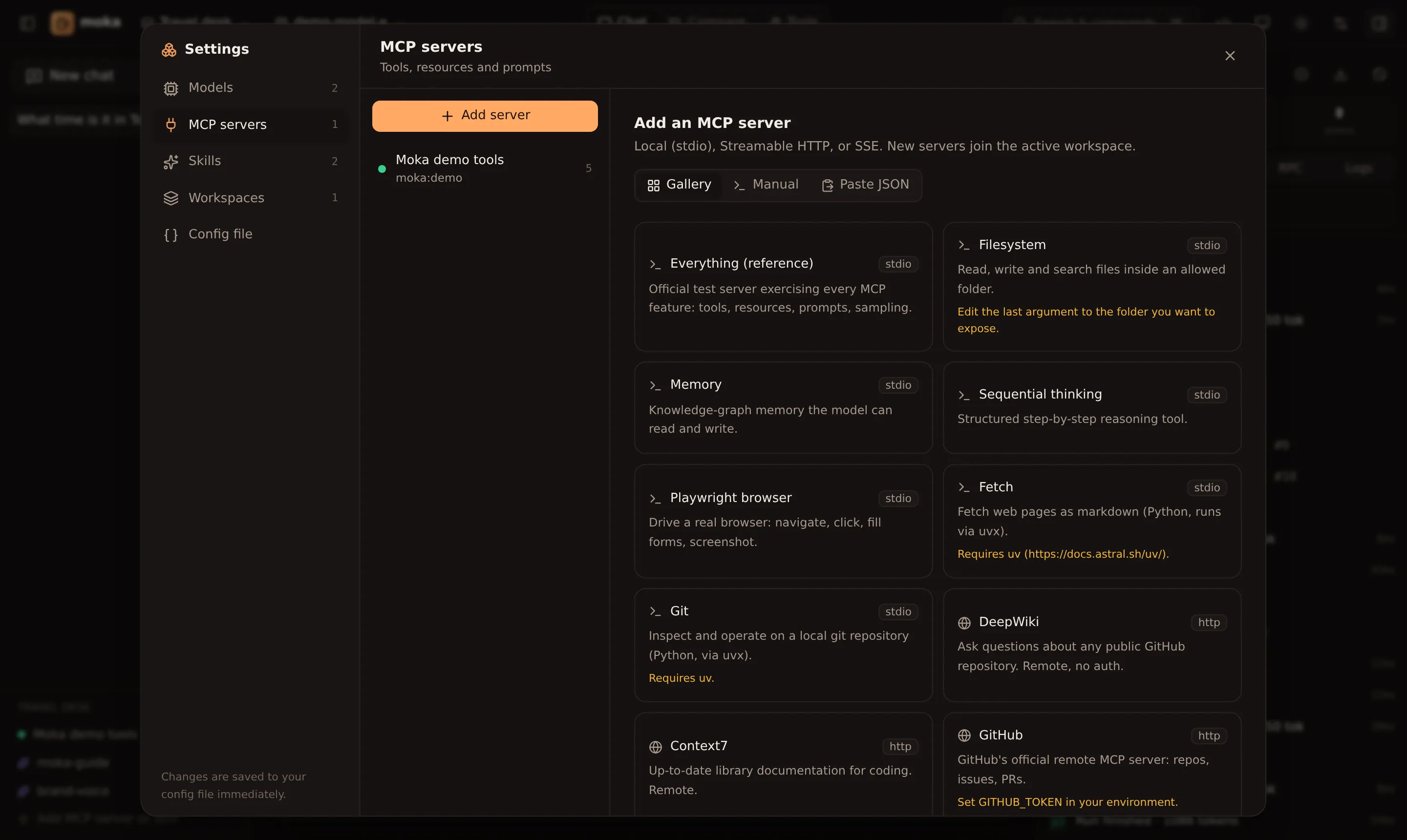
Moka is a full Model Context Protocol client. It supports tools, resources, prompts, server instructions, and MCP Apps (interactive UI).
Three ways to add a server
Section titled “Three ways to add a server”Settings → MCP servers → Add server → Gallery lists popular servers: Everything (reference), Filesystem, Memory, Sequential thinking, Playwright, Fetch, Git, DeepWiki, Context7 and GitHub. One click adds and connects it.
Choose a transport and fill in the form:
- stdio — a local process: command (
npx,uvx,node,python,docker…), arguments (one per line), environment variables, working directory. - Streamable HTTP — a URL (usually ending in
/mcp) plus headers. - SSE (legacy) — a URL (usually ending in
/sse) plus headers.
Click Test connection to connect without saving and see the tools, resources and prompts — or the error and stderr output.
Paste the config you already use elsewhere. Moka understands:
{ "mcpServers": { "filesystem": { "command": "npx", "args": ["-y", "@modelcontextprotocol/server-filesystem", "/Users/me/projects"] }, "linear": { "type": "http", "url": "https://mcp.linear.app/mcp", "headers": { "Authorization": "Bearer ${LINEAR_TOKEN}" } } }}{ "servers": { "github": { "type": "http", "url": "https://api.githubcopilot.com/mcp/" } } }On macOS your Claude Desktop config lives at ~/Library/Application Support/Claude/claude_desktop_config.json.
New servers are added to the active workspace and connected right away.
Secrets in servers
Section titled “Secrets in servers”Use environment references anywhere in command, args, env, url and headers:
{ "id": "github", "name": "GitHub", "transport": "http", "url": "https://api.githubcopilot.com/mcp/", "headers": { "Authorization": "Bearer ${GITHUB_TOKEN}" }}stdio servers inherit a safe default environment (PATH, HOME, …) plus whatever you add under Environment variables.
Sign-in, approvals and more
Section titled “Sign-in, approvals and more”- Hosted servers that use OAuth get a Sign in button. See Sign-in, elicitation & sampling.
- Make the model ask before running tools with tool approvals.
- Attach a server’s resources with @ and use its prompts with / in the composer (Chat, files & replay).
Controlling tools
Section titled “Controlling tools”Once a server is connected, its tools are listed in its settings page:
- Switch — hide a tool from the model (for example
delete_repository). Hidden tools can still be called from the Tool runner. - Try — jump to the tool runner with that tool selected.
Tools are exposed to models as <serverId>__<toolName> (sanitised to letters, numbers, _ and -, max 64 characters), so two servers can safely have tools with the same name.
Connection lifecycle
Section titled “Connection lifecycle”- Servers connect lazily — when a workspace that uses them is opened, when you chat, or when you click Connect.
- Changing transport settings reconnects automatically; renaming a server or toggling tools doesn’t.
- Server instructions (from the
initializeresult) are appended to the system prompt. - Every JSON-RPC message in both directions appears in the Inspector under RPC, and stderr lines under Logs.
Troubleshooting
Section titled “Troubleshooting”| Symptom | Fix |
|---|---|
spawn npx ENOENT | Node isn’t on the PATH Moka sees. Use an absolute path to npx, or add PATH under environment variables. |
spawn uvx ENOENT | Install uv (brew install uv). |
| Times out connecting | The first npx -y download can be slow; raise Timeout (ms) under Advanced. |
| HTTP 401 / 403 | Check headers; remember ${VAR} must be set in the environment Moka was started from. |
| Connects but no tools | The server may only expose resources/prompts — browse them in the Tools view. |
More in Troubleshooting.